> ## Documentation Index
> Fetch the complete documentation index at: https://honeydew.ai/docs/llms.txt
> Use this file to discover all available pages before exploring further.
# Microsoft Teams App
## Overview
Honeydew Analyst Bot for Microsoft Teams is a conversational AI tool that helps you analyze your data in Microsoft Teams.
You can ask questions about your data, get insights and visualizations without leaving your Teams account.
## Installation
To make the **Honeydew** app available in Microsoft Teams, follow these two main steps:
1. **Upload the app manifest file** (requires a user with permission to submit apps).
2. **Admin approval and publishing** (performed by a Microsoft Teams administrator).
***
### **Step 1: Upload the App Manifest File**
The first step is to submit the app to your organization for approval.
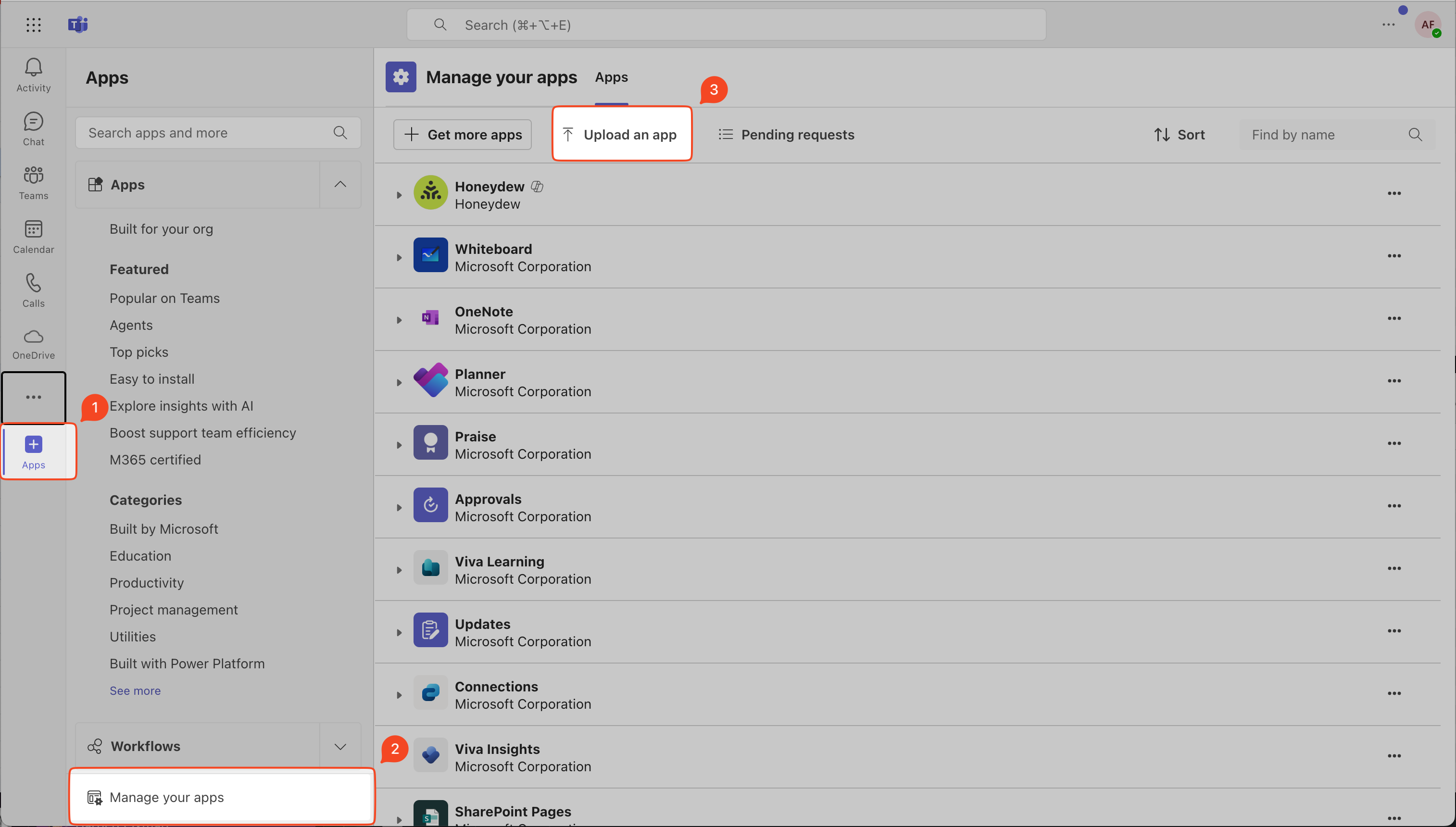 * Open the **Microsoft Teams** app.
* Click on the **Apps** button on the left sidebar.
* In the **Apps** menu, scroll down and select **"Manage your apps"**.
* Click on **"Upload an app"** at the top of the page.
* Open the **Microsoft Teams** app.
* Click on the **Apps** button on the left sidebar.
* In the **Apps** menu, scroll down and select **"Manage your apps"**.
* Click on **"Upload an app"** at the top of the page.
 * In the Honeydew app, go to **Settings → Microsoft Teams** (requires admin
permissions) and click **Download Microsoft Teams app package** to download the
manifest package zip file.
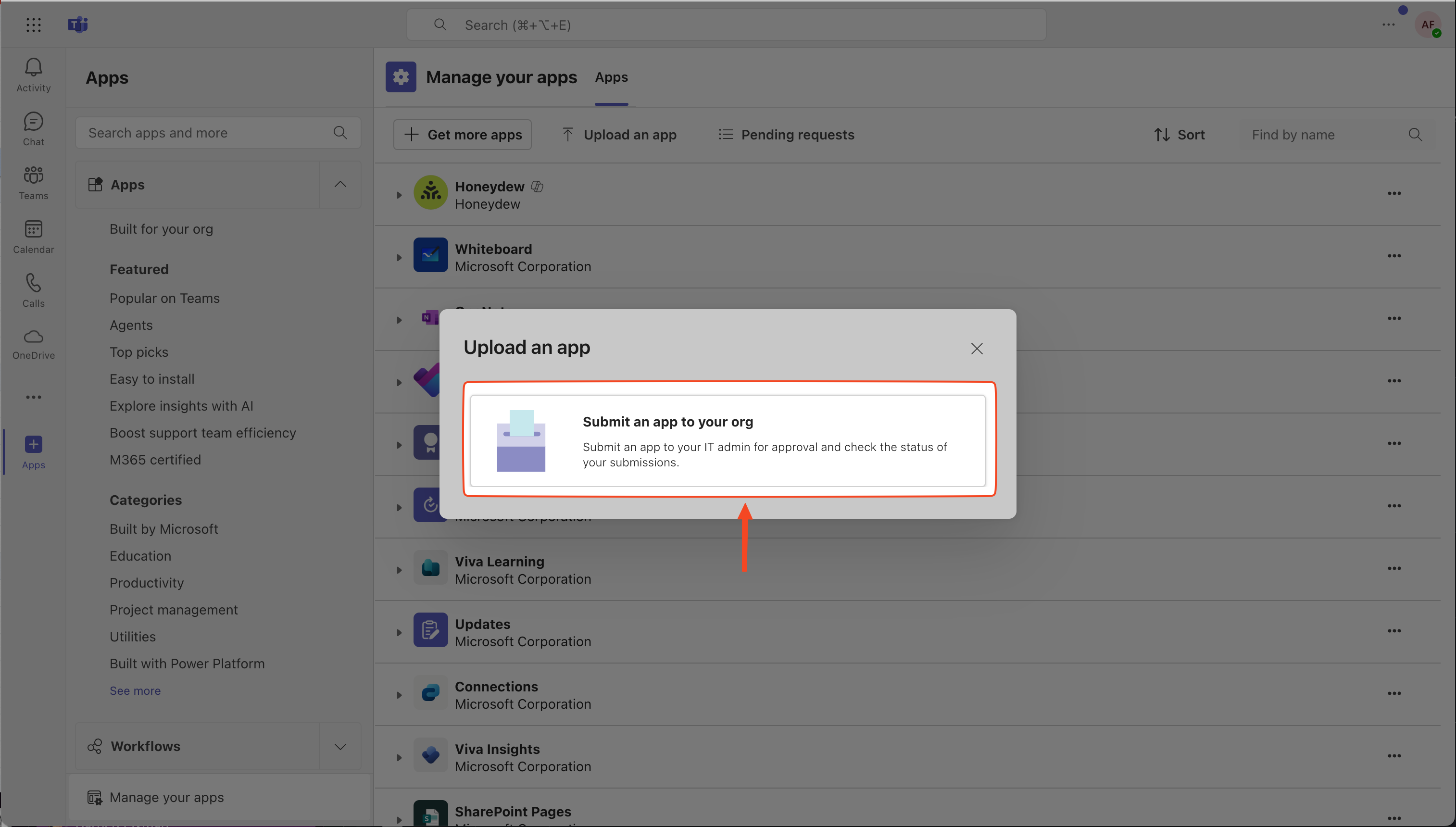
* Select **"Submit an app to your org"** to send it for IT admin approval and
upload the app manifest file.
If your organization uses a
[single-tenant dedicated deployment](/docs/initial-setup#single-tenant-dedicated-deployment)
and **Microsoft Teams** is not available in your Honeydew settings,
contact Honeydew support at [support@honeydew.ai](mailto:support@honeydew.ai).
* In the Honeydew app, go to **Settings → Microsoft Teams** (requires admin
permissions) and click **Download Microsoft Teams app package** to download the
manifest package zip file.
* Select **"Submit an app to your org"** to send it for IT admin approval and
upload the app manifest file.
If your organization uses a
[single-tenant dedicated deployment](/docs/initial-setup#single-tenant-dedicated-deployment)
and **Microsoft Teams** is not available in your Honeydew settings,
contact Honeydew support at [support@honeydew.ai](mailto:support@honeydew.ai).
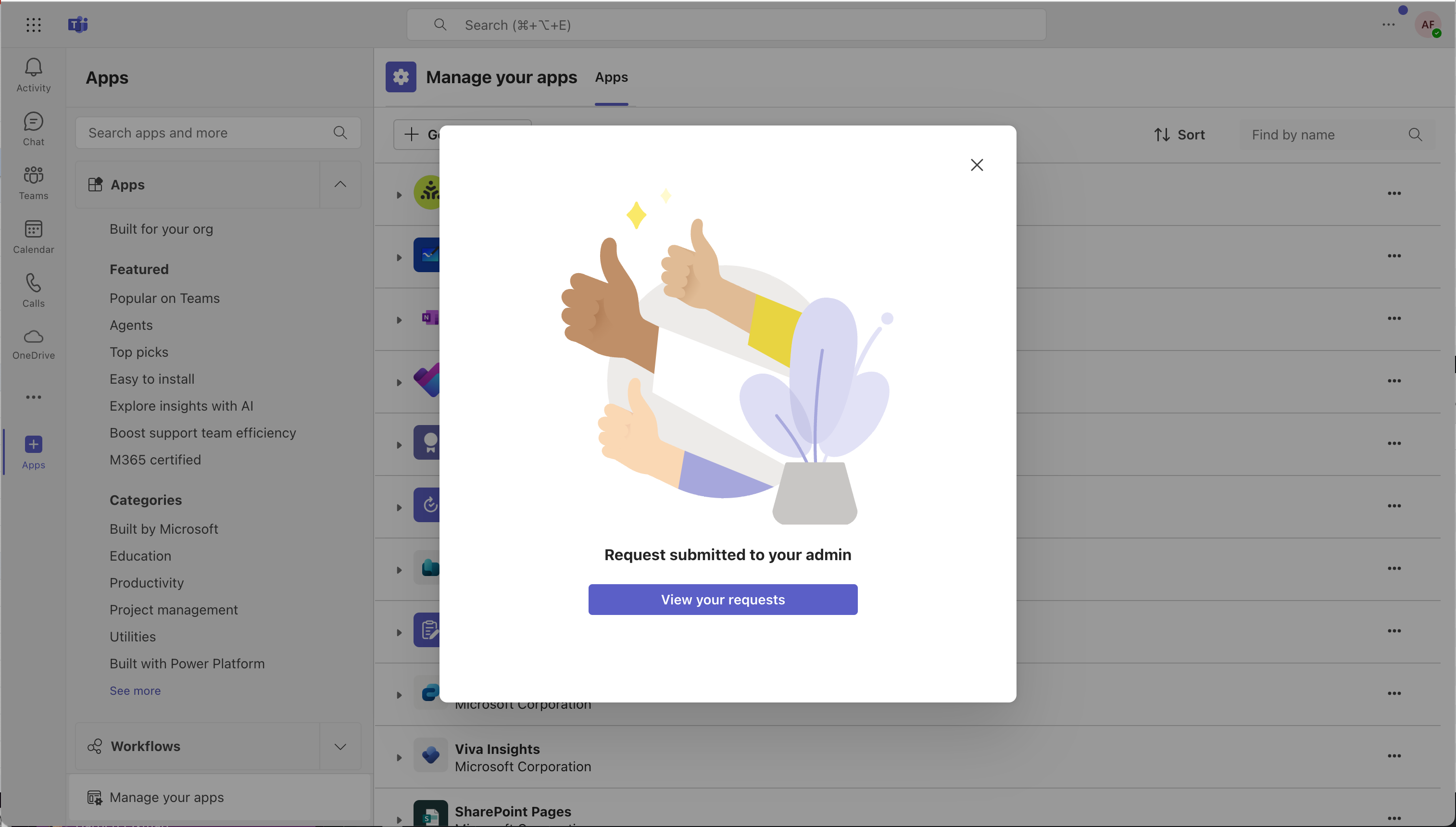 * A confirmation message will appear:
*"Request submitted to your admin"*.
* Click **"View your requests"** to check the status of your submission.
### **Step 2: Admin Approval & Publishing**
Once the app is uploaded, a Microsoft Teams admin must approve and publish it.
* A confirmation message will appear:
*"Request submitted to your admin"*.
* Click **"View your requests"** to check the status of your submission.
### **Step 2: Admin Approval & Publishing**
Once the app is uploaded, a Microsoft Teams admin must approve and publish it.
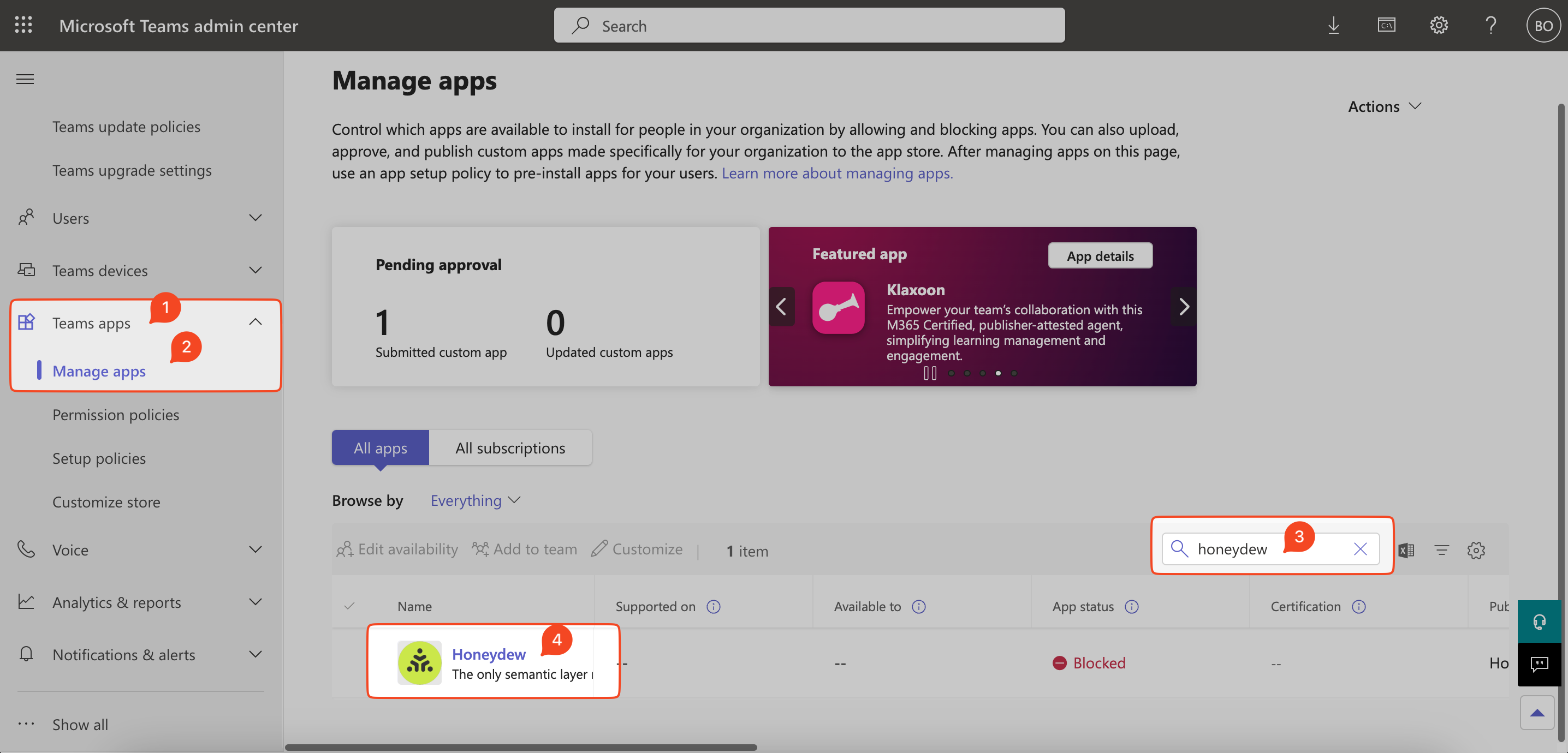 * Go to the [Microsoft Teams Admin Center](https://admin.teams.microsoft.com).
* Sign in with an admin account.
* In the left sidebar, expand **"Teams Apps"** and click **"Manage apps"**.
* Use the search bar to find **Honeydew**.
* The app will be listed under **Pending Approval**.
* Click on **Honeydew** to open its details page.
* Go to the [Microsoft Teams Admin Center](https://admin.teams.microsoft.com).
* Sign in with an admin account.
* In the left sidebar, expand **"Teams Apps"** and click **"Manage apps"**.
* Use the search bar to find **Honeydew**.
* The app will be listed under **Pending Approval**.
* Click on **Honeydew** to open its details page.
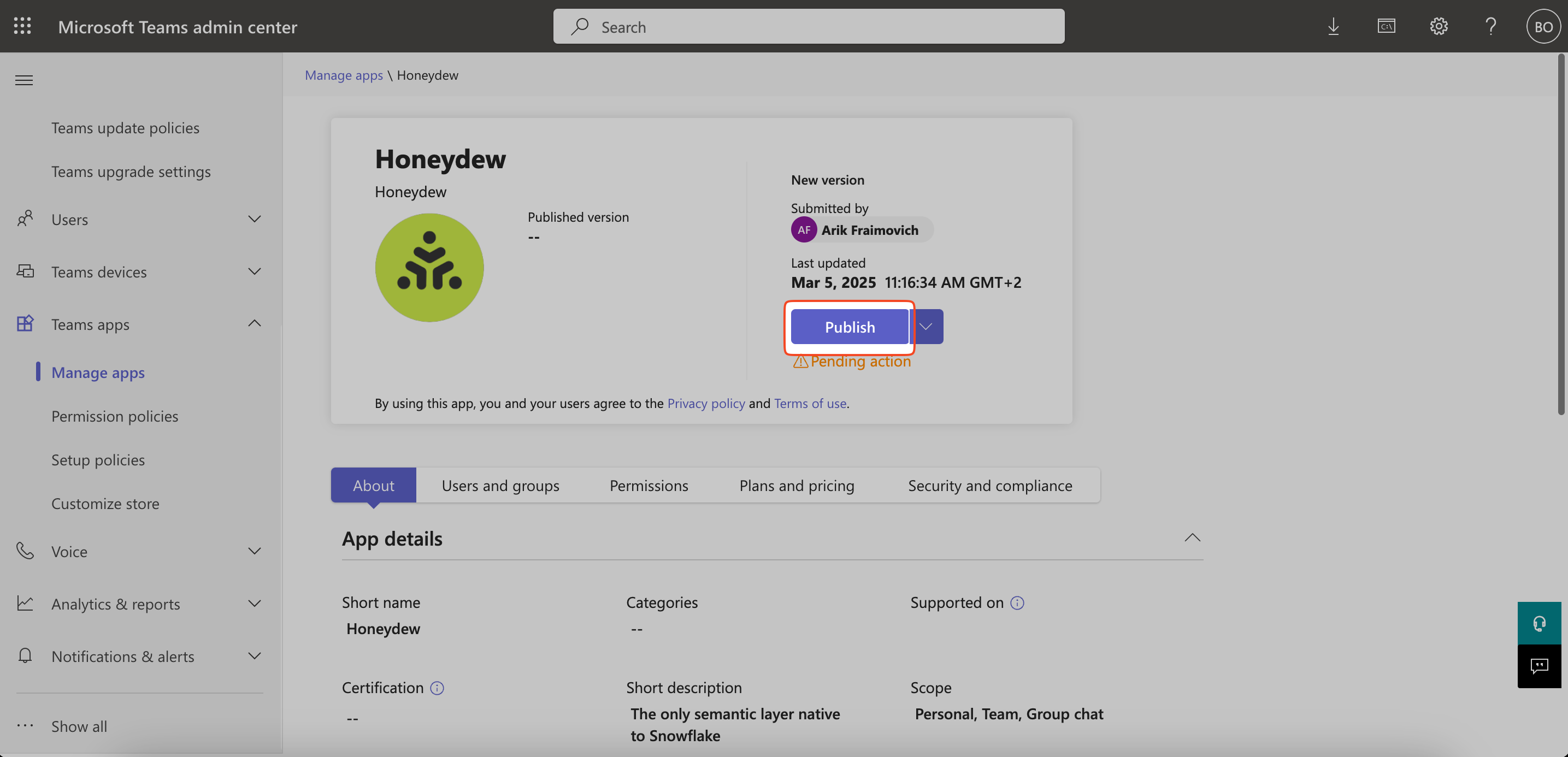 * Click **"Publish"** to approve and deploy the app to your organization.
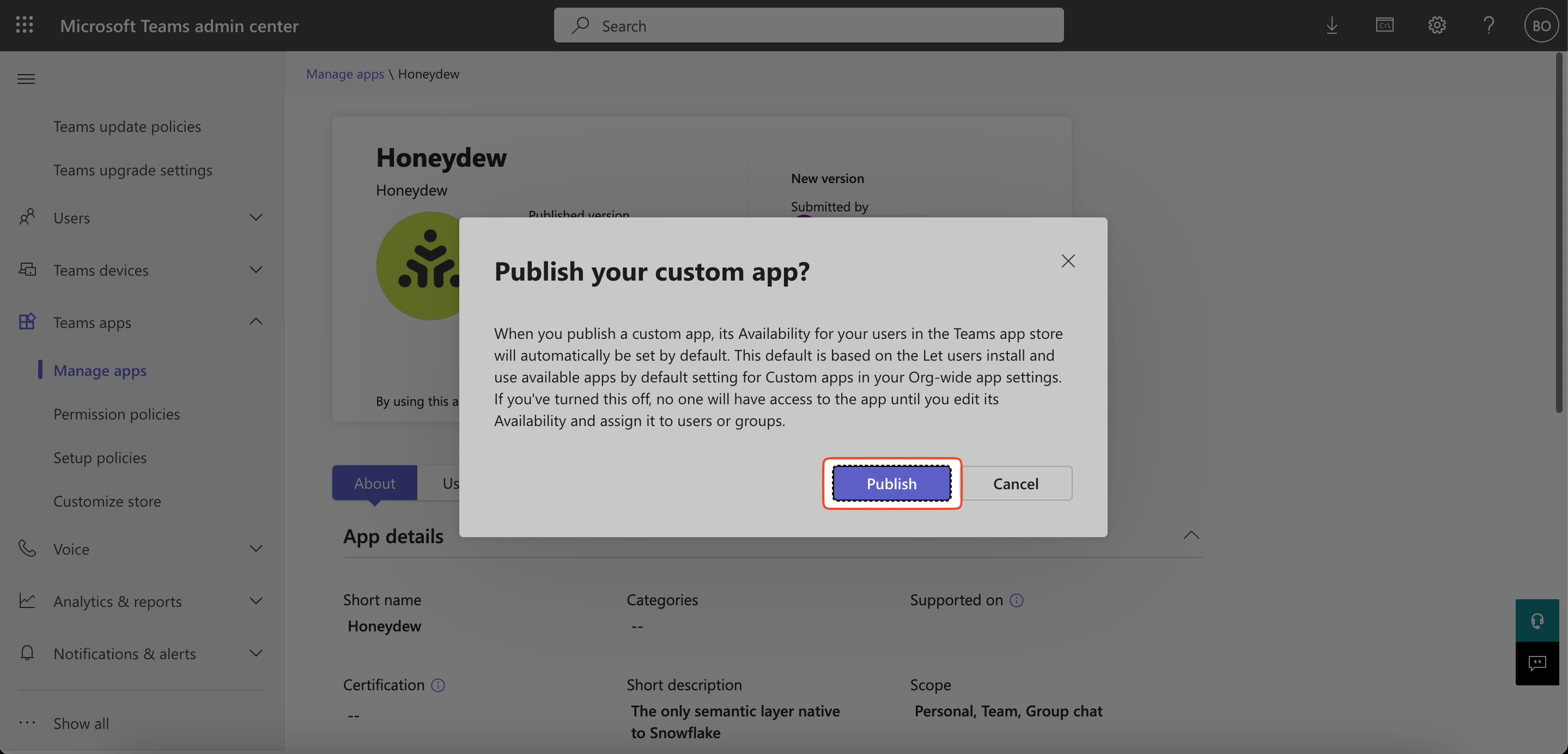 * A confirmation message will appear—click **"Publish"** again to finalize.
* Once published, the app will be available in **Microsoft Teams** for users in the organization.
## Configuration
After the app is published, an administrator configures the Honeydew Analyst Bot before anyone
can use it.
Send `honeydew-config` to the bot (as a direct message or by addressing it with
`@Honeydew Analyst Bot` in a channel) and click **Configure Settings**
(or **Edit Configuration**) to open
the configuration form.
### Authentication Methods
The Honeydew Analyst Bot for Microsoft Teams supports three authentication modes:
**OAuth Only (Recommended)**: Each user authenticates with their own Honeydew account.
This allows personalized experiences and access control. It also enables using individual
Snowflake credentials when the
[Snowflake OAuth authentication method](/docs/integration/data-sources/snowflake#oauth-authentication)
is configured for your organization, enforcing data access policies at the user level.
**API Key Only (Legacy)**: All users share a single service API key and secret.
Use this if you want to make the bot available without requiring each user to have a
Honeydew account.
**Hybrid (Channel-Based)**: OAuth by default, with specific channels using the shared API key.
List the channel IDs that should use API key authentication; all other channels use OAuth.
### Configuration Steps
1. Send `honeydew-config` to the bot and click **Configure Settings**
(or **Edit Configuration**) to open the form.
2. Fill in the following details:
* **Authentication Mode**: Choose OAuth Only, Hybrid, or API Key Only (see above).
* **API Key (Optional)**: Leave blank to use OAuth. Enter your API key to use
API Key authentication.
* **API Secret (Optional)**: Required only if API Key is set. Leave blank for OAuth.
* **Workspace**: The Honeydew workspace the bot connects to (required).
* **Agent (Optional)**: Leave blank to enable [agent routing](#agent-routing).
Enter a specific [agent](/docs/integration/context-layer/agents) name to use that agent
for all conversations.
* **API Key Channels**: Used only in Hybrid mode. Comma-separated channel IDs that
use API key authentication; all other channels use OAuth.
3. Click **Save**. A confirmation message appears showing the updated settings.
## Prerequisites
**Important**: If using **Snowflake Cortex** as the LLM platform,
ensure the [Snowflake Cortex Prerequisites](/docs/integration/data-sources/snowflake#snowflake-cortex-requirements) are met,
before using the Honeydew Analyst Bot for Microsoft Teams
## Usage
Once the Honeydew Analyst Bot is installed and configured, you can start using it in
Microsoft Teams.
### Direct Conversations
Open a direct chat with the bot and send your question.
In OAuth mode, the first time you ask a question the bot sends a **Sign In to Honeydew**
card — sign in once with your Honeydew account to continue.
### Conversations in a Channel
To ask questions in a channel, add the bot to the channel and address it directly using
`@Honeydew Analyst Bot`.
Continue asking follow-up questions on the bot's answer by replying in the same thread.
To ask a new question without the previous context, start a new thread.
### Logout (OAuth Mode Only)
When using OAuth authentication, send `honeydew-logout` to sign out of your Honeydew account.
This disconnects your account from the bot, and you'll need to re-authenticate to continue.
## Agent routing
With [agents](/docs/integration/context-layer/agents) configured in your workspace,
Honeydew can automatically route each question to the most relevant agent.
To enable agent routing, leave the **Agent** field blank in the bot configuration.
When routing is active, Honeydew selects the agent based on the content of the question:
* **Single match**: routes to that agent automatically.
* **Multiple matches**: asks which agent to use.
* **No match**: replies that no configured agent fits the question.
### What the router considers
The router uses an LLM to match the question against every agent in the workspace.
For each agent, it looks at:
* **`description`** and **AI context** — the primary signals.
The `description` frontmatter field and the agent's AI context (the Markdown body)
are equally weighted: both should precisely describe what data, topics,
or business area the agent covers, from the user's perspective.
* **`sample_questions`** — example questions the agent is designed to answer.
These are the most direct routing hint: the closer a user's question resembles
a sample question, the more confidently the router picks that agent.
* **`domain`** — the domain the agent is connected to,
which provides additional topical scope.
The router matches semantically — an agent with a vague description
and no sample questions will match inconsistently,
even if the domain name is relevant.
### Writing effective agent metadata
The following shows the routing-relevant fields — see the
[full YAML schema](/docs/integration/context-layer/agents#yaml-schema) for all required fields:
```markdown theme={null} theme={null}
---
description: Analyzes sales pipeline, deal stages, and revenue forecasts for the sales team
sample_questions:
- What is the current pipeline value by stage?
- Which deals are at risk of slipping this quarter?
- Show me revenue forecast vs. actuals for Q2
---
This agent covers sales performance analysis: pipeline health,
deal progression, win/loss trends, and revenue forecasting.
Use it for questions about the sales team's targets and actuals.
```
#### Tips
* Write `description` from the user's perspective, not the data model's.
"Analyzes sales pipeline" is more useful than "accesses the orders domain."
* Make `sample_questions` representative of what real users will ask,
not just technically valid queries.
* When two agents cover adjacent topics, make their descriptions distinct enough
to avoid ambiguous routing. The router will surface both as choices when
it cannot differentiate between them.
## Useful Tips
1. **Treat it as a conversation**: Sometimes AI will need additional context to answer well.
Use follow-up questions to narrow down the data.
2. **Ask detailed questions**: The more context you provide in your question, the better the bot can understand and provide accurate answers.
3. **Ask for possible values before asking to filter**:
If you asked for data with filter and the bot returned nothing, a common root cause is that the database values don't match you filter.
When that happens, instead first ask for the values in that category and then ask for the filtering as a follow-up question -
when the bot sees the data first, it can construct much smarter filtering.
4. **Provide hints**: If you get an unexpected or incomplete answer, ask again, and provide some additional information or context,
or point out what was missing in the previous answer.
5. **Break very complex questions into few steps**: If your question is very complex, ask it in steps and gradually make a journey through the data by adding context.
## Support
If you have any questions or need help with the Honeydew Analyst Bot for Microsoft Teams, please reach out to [support@honeydew.ai](mailto:support@honeydew.ai).
* A confirmation message will appear—click **"Publish"** again to finalize.
* Once published, the app will be available in **Microsoft Teams** for users in the organization.
## Configuration
After the app is published, an administrator configures the Honeydew Analyst Bot before anyone
can use it.
Send `honeydew-config` to the bot (as a direct message or by addressing it with
`@Honeydew Analyst Bot` in a channel) and click **Configure Settings**
(or **Edit Configuration**) to open
the configuration form.
### Authentication Methods
The Honeydew Analyst Bot for Microsoft Teams supports three authentication modes:
**OAuth Only (Recommended)**: Each user authenticates with their own Honeydew account.
This allows personalized experiences and access control. It also enables using individual
Snowflake credentials when the
[Snowflake OAuth authentication method](/docs/integration/data-sources/snowflake#oauth-authentication)
is configured for your organization, enforcing data access policies at the user level.
**API Key Only (Legacy)**: All users share a single service API key and secret.
Use this if you want to make the bot available without requiring each user to have a
Honeydew account.
**Hybrid (Channel-Based)**: OAuth by default, with specific channels using the shared API key.
List the channel IDs that should use API key authentication; all other channels use OAuth.
### Configuration Steps
1. Send `honeydew-config` to the bot and click **Configure Settings**
(or **Edit Configuration**) to open the form.
2. Fill in the following details:
* **Authentication Mode**: Choose OAuth Only, Hybrid, or API Key Only (see above).
* **API Key (Optional)**: Leave blank to use OAuth. Enter your API key to use
API Key authentication.
* **API Secret (Optional)**: Required only if API Key is set. Leave blank for OAuth.
* **Workspace**: The Honeydew workspace the bot connects to (required).
* **Agent (Optional)**: Leave blank to enable [agent routing](#agent-routing).
Enter a specific [agent](/docs/integration/context-layer/agents) name to use that agent
for all conversations.
* **API Key Channels**: Used only in Hybrid mode. Comma-separated channel IDs that
use API key authentication; all other channels use OAuth.
3. Click **Save**. A confirmation message appears showing the updated settings.
## Prerequisites
**Important**: If using **Snowflake Cortex** as the LLM platform,
ensure the [Snowflake Cortex Prerequisites](/docs/integration/data-sources/snowflake#snowflake-cortex-requirements) are met,
before using the Honeydew Analyst Bot for Microsoft Teams
## Usage
Once the Honeydew Analyst Bot is installed and configured, you can start using it in
Microsoft Teams.
### Direct Conversations
Open a direct chat with the bot and send your question.
In OAuth mode, the first time you ask a question the bot sends a **Sign In to Honeydew**
card — sign in once with your Honeydew account to continue.
### Conversations in a Channel
To ask questions in a channel, add the bot to the channel and address it directly using
`@Honeydew Analyst Bot`.
Continue asking follow-up questions on the bot's answer by replying in the same thread.
To ask a new question without the previous context, start a new thread.
### Logout (OAuth Mode Only)
When using OAuth authentication, send `honeydew-logout` to sign out of your Honeydew account.
This disconnects your account from the bot, and you'll need to re-authenticate to continue.
## Agent routing
With [agents](/docs/integration/context-layer/agents) configured in your workspace,
Honeydew can automatically route each question to the most relevant agent.
To enable agent routing, leave the **Agent** field blank in the bot configuration.
When routing is active, Honeydew selects the agent based on the content of the question:
* **Single match**: routes to that agent automatically.
* **Multiple matches**: asks which agent to use.
* **No match**: replies that no configured agent fits the question.
### What the router considers
The router uses an LLM to match the question against every agent in the workspace.
For each agent, it looks at:
* **`description`** and **AI context** — the primary signals.
The `description` frontmatter field and the agent's AI context (the Markdown body)
are equally weighted: both should precisely describe what data, topics,
or business area the agent covers, from the user's perspective.
* **`sample_questions`** — example questions the agent is designed to answer.
These are the most direct routing hint: the closer a user's question resembles
a sample question, the more confidently the router picks that agent.
* **`domain`** — the domain the agent is connected to,
which provides additional topical scope.
The router matches semantically — an agent with a vague description
and no sample questions will match inconsistently,
even if the domain name is relevant.
### Writing effective agent metadata
The following shows the routing-relevant fields — see the
[full YAML schema](/docs/integration/context-layer/agents#yaml-schema) for all required fields:
```markdown theme={null} theme={null}
---
description: Analyzes sales pipeline, deal stages, and revenue forecasts for the sales team
sample_questions:
- What is the current pipeline value by stage?
- Which deals are at risk of slipping this quarter?
- Show me revenue forecast vs. actuals for Q2
---
This agent covers sales performance analysis: pipeline health,
deal progression, win/loss trends, and revenue forecasting.
Use it for questions about the sales team's targets and actuals.
```
#### Tips
* Write `description` from the user's perspective, not the data model's.
"Analyzes sales pipeline" is more useful than "accesses the orders domain."
* Make `sample_questions` representative of what real users will ask,
not just technically valid queries.
* When two agents cover adjacent topics, make their descriptions distinct enough
to avoid ambiguous routing. The router will surface both as choices when
it cannot differentiate between them.
## Useful Tips
1. **Treat it as a conversation**: Sometimes AI will need additional context to answer well.
Use follow-up questions to narrow down the data.
2. **Ask detailed questions**: The more context you provide in your question, the better the bot can understand and provide accurate answers.
3. **Ask for possible values before asking to filter**:
If you asked for data with filter and the bot returned nothing, a common root cause is that the database values don't match you filter.
When that happens, instead first ask for the values in that category and then ask for the filtering as a follow-up question -
when the bot sees the data first, it can construct much smarter filtering.
4. **Provide hints**: If you get an unexpected or incomplete answer, ask again, and provide some additional information or context,
or point out what was missing in the previous answer.
5. **Break very complex questions into few steps**: If your question is very complex, ask it in steps and gradually make a journey through the data by adding context.
## Support
If you have any questions or need help with the Honeydew Analyst Bot for Microsoft Teams, please reach out to [support@honeydew.ai](mailto:support@honeydew.ai).